- UID
- 167
- Online time
- Hours
- Posts
- Reg time
- 9-9-2017
- Last login
- 1-1-1970
|
The Samsung Galaxy S8 is the latest flagship device to be released by the South Korean manufacturer, and as it's only a few months old, so you're probably not expecting to have any issues with it - at least not yet. We're doing our bit to ensure that you can get the most out of your new smartphone, so what better way is there than to provide you with a few tips and tricks for your new Galaxy S8? Plus, we've just added 10 new tips!
Turn on "Smart select"
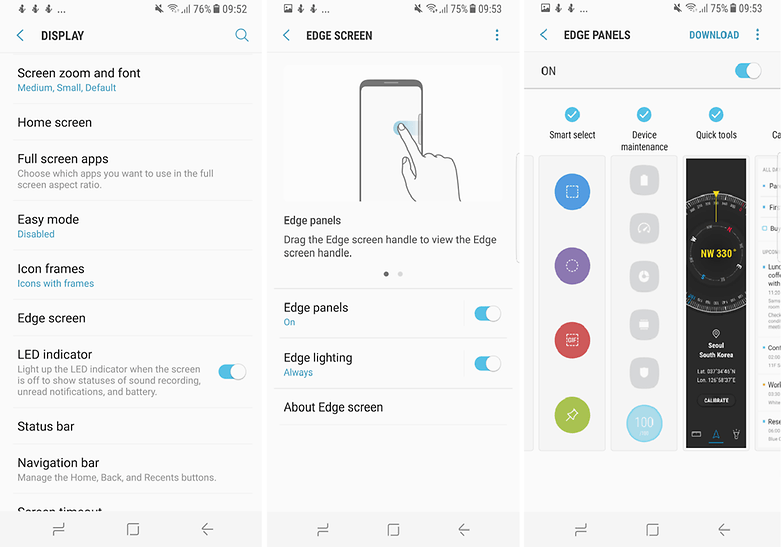
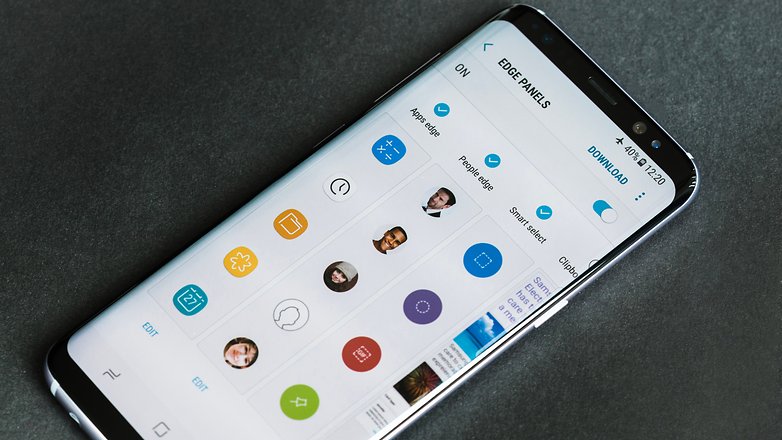
One of the best and least known features which has made its way onto the Galaxy S8 is one which managed to survive the fiery demise of the Note 7: the Smart select feature. In the Note 7, Smart select was integrated into the S Pen. Samsung has adapted this feature for the Galaxy S8 and S8 +, and integrated it into the edge of the display. The screen is still divided into individual panels, which gives you quick access to your apps, tasks, contacts and much more.
To activate Smart select, go to Settings > Display > Edge screen > Edge panels and then tap on "Smart select."
Edit screenshots and turn videos to GIFs with "Smart select"
Smart select also includes advanced screenshot functions. The feature allows you to create and cut square or round image, add notes or markers, and immediately split or save them.
Videos can be converted and split into animated GIFs with Smart select. This is a good way to enhance social media postings or WhatsApp messages. First, find a video you actually want to use as a GIF - YouTube is always a good place to start. Then just follow these steps:
Swipe the edge of the S8 to open up the Smart select features app tray and select "Animation."
Make a box around the video you want to capture by moving the edges of its corners.
Select ‘Record’ while the video is playing and the tool will capture the video.
As the GIF is being recorded, a timer and file size indicator allows to you view both how large your file is as well as the length of the clip. After this, you'll be able to find your GIF in the Google Photos app and from here you'll be able to send to a wider audience.
Disable "Always On"
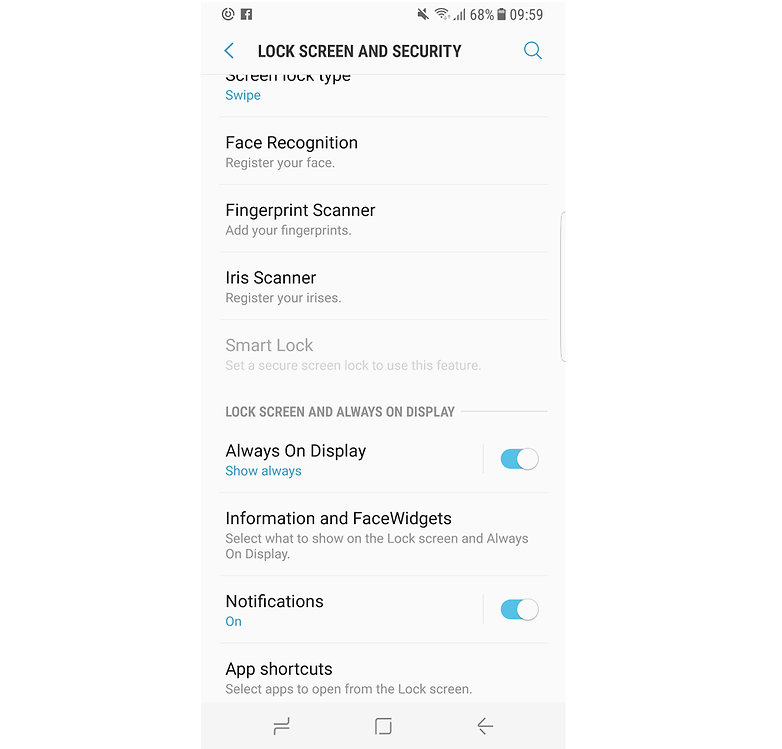
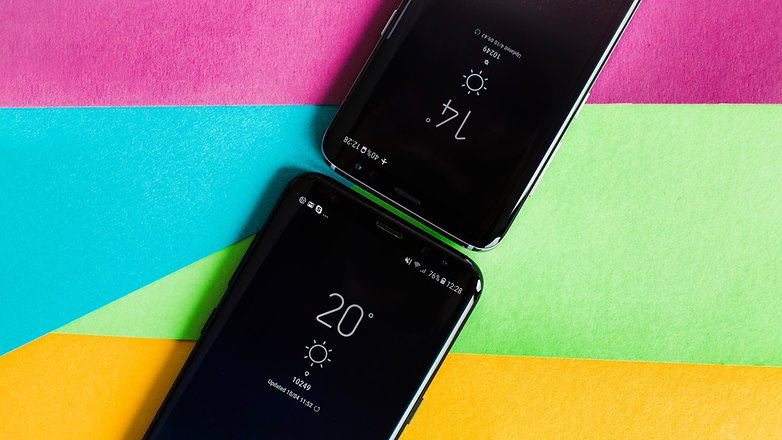
Taking an occasional look at your phone to check the time is convenient, but it also drains your battery. You can easily resolve this by disabling the "Always On Display" mode. Just go to Settings > Lock screen and security > Always On Display, then slide the toggle to turn the function off.
Once this is done, the screen will stay off when your smartphone is locked. No need to worry though, if you do find yourself needing to check the time, just press the home button.
Optimize your battery usage
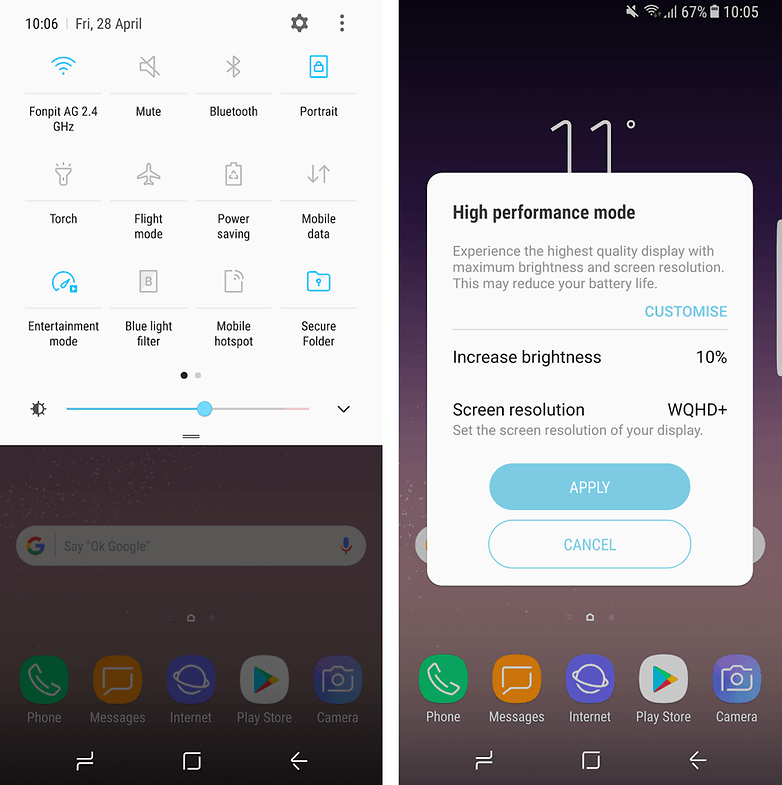
The Galaxy S8 and S8 + both have an impressive, high-resolution display, but this also has its disadvantages. One major drawback is that the display can significantly reduce the battery life when it has the maximum resolution and other optimization settings turned on. So that the average S8 user doesn't have to go hunting around in the settings to make multiple adjustments, Samsung has created so-called performance modes.
With the factory settings, the Galaxy S8 is in Optimized mode. Beyond this, there are an additional three other preconfigured modes with the names "Game", "Entertainment" and "High Performance."
So that you avoid setting things up via Settings > Device management > Performance mode before you start a game, a video or play music, Samsung provides a shortcut with Entertainment mode. Don't allow the label to lead you astray; the button can only be switched between Optimized and one of the other three modes.
Send your apps to sleep
With the release of the Galaxy S8, Samsung has introduced a nifty new function to help users improve their chances of avoiding battery issues. You now have the option to manually put your apps to sleep.
Once an app is "asleep" it won't run in the background, and any push notifications will be paused. When you go to use the app it will wake up, and so after this you will once again receive notifications and updates.
To send an app to sleep, long-press on an app icon until a settings menu opens. Select "Sleep", and when the second window opens, tap "OK."
Bypass the lock screen with the Home button
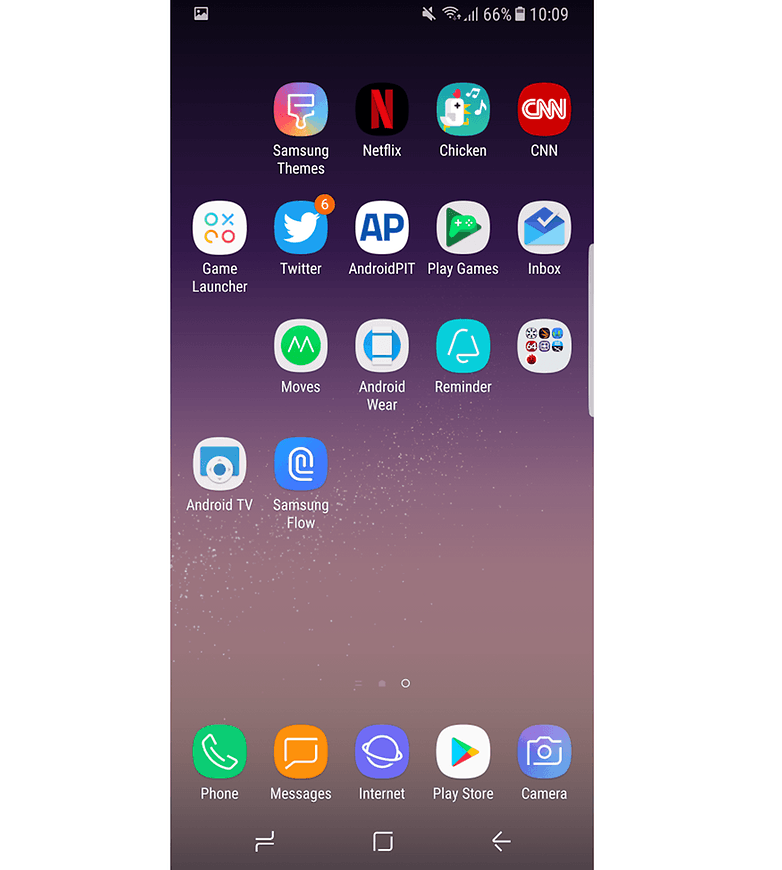
You can bypass the lock screen of the S8 and jump to the home screen with a simple hard press (no swiping required) of the Home button when the Always On Display is on. You can activate this feature by going to Settings > Display > Navigation bar, and then activating Unlock with Home button. Once this is activated you may wish to adjust the sensitivity of the Home button to avoid unwanted presses.
|
|
 |
|  |
|  |
|
 العربية
 Deutsch
 Español
 Français
 한국어
한국어 |
|




 Post time: 29-9-2017 02:02:55